
MCP in IBM App Connect Enterprise 13.0.7: turning the admin server into an MCP host
On this page
- Assumptions
- Step 1: Enable MCP.Admin in overrides
- Step 2: Hook up a client
- MCP Inspector (recommended for browsing)
- Curl
- Step 3: Tools registered by MCP.Admin
- 3.1 Provide basic information about the connected server
- 3.2 List the Applications, Rest APIs, Services and Libraries of an integration runtime, together with their state
- 3.3 List any deployment or runtime resources this application needs
- 3.4 List the policies of an integration runtime
- 3.5 List the credentials of an integration runtime
- 3.6 Return a structure with information detailing a message flow
- Handing it over to Bob
- Make the cert workaround permanent
- Register the MCP server in Bob
- Problems I encountered
- Self-signed certificate vs Node.js
- PowerShell 5.1 doesn’t have -SkipCertificateCheck
- PowerShell quote-passing to native .exes
- 500 Internal Server Error with zero detail
- Only one MCP client at a time
- Inspector’s “Disconnect” doesn’t really disconnect
- Auth: do this before anyone else can reach the port
- What this didn’t cover
- Where this leaves us
- References
A big shoutout goes to Kim Meynendonckx. This post has been very much inspired by him (and maybe I kinda beat him to the punch in writing it).
IBM shipped a cheeky little feature in the latest ACE release. Hidden, or at least undocumented.
ACE 13.0.7.0 brings with it an MCP server inside the IntegrationServer runtime. It’s configured via a new MCP: block in
server.conf.yaml and has two sibling stanzas: Admin and Runtime.
MCP.Runtimeexposes deployed Toolkit REST API operations as MCP tools , the headline 13.0.7 feature.MCP.Adminexposes a set of administration tools (list applications, list policies, etc., all read-only) so an MCP-enabled agent can introspect the integration server itself. This is the one the IBM docs currently say nothing about.
This post walks through enabling MCP.Admin on a vanilla standalone integration server, hitting it from both
MCP Inspector (the official GUI) and plain curl, and triggering every MCP feature available. For each tool you
get the description the server publishes, the JSON request, an Inspector screenshot, the curl equivalent, and the actual
JSON response from a real integration server populated with applications, policies, and credentials.
No auth in this post.
MCP.Adminis unauthenticated by default, and we’re leaving it that way to keep the examples short. Anything reachable beyond your laptop should set authentication and serve over TLS with a proper certificate, see the auth section at the end.
Assumptions
- IBM App Connect Enterprise
13.0.7.0or later installed locally. - You can start a standalone integration server with a writable work directory (for this blog I’ll be using
c:\temp\MCP_SERVER). - Node.js available so
npx @modelcontextprotocol/inspectorworks. curlavailable (Windows 10+ ships it, on PowerShell callcurl.exeso you don’t get theInvoke-WebRequestalias).- You’ve deployed at least one application / policy / credential into the runtime, otherwise there is nothing to report on.
Step 1: Enable MCP.Admin in overrides
The server.conf.yaml ACE ships is large and rebuilt on every fixpack, so you don’t want to edit it in place. The clean
pattern is to drop a tiny server.conf.yaml into the work directory’s overrides/ folder. Having a separate file with
just the deltas to get your server running is also handy if you are thinking about versioning your config.
# c:\temp\MCP_SERVER\overrides\server.conf.yaml
MCP:
  Admin:
    enabled: true       # default false
    port: 7650          # default 7650; leave as-is unless 7650 is taken
Two properties is all the MCP.Admin block has on 13.0.7.0. Enabling the MCP server and setting the port. TLS-wise it
inherits from RestAdminListener, so if your admin listener is on HTTPS (and on a default install it is),
MCP.Admin is HTTPS too.
Restart the integration server after enabling the MCP. You should see two listener-start log lines, one for the admin REST endpoint and one for MCP:
2026-05-19 13:48:54.290436: BIP3132I: The HTTP Listener has started listening on port '7777' for 'RestAdmin https' connections.
2026-05-19 13:48:54.308828: BIP3132I: The HTTP Listener has started listening on port '7650' for 'MCP Streamable https' connections.
The port 7777 for RestAdmin https is what I happen to have configured (since I am running multiple servers). New
Integration Servers default to 7600.
Step 2: Hook up a client
Two ways to drive the MCP server (there are more, but I chose one graphical and one CLI option). Pick one, or use both side by side. I’ll show both so you can compare.
MCP Inspector (recommended for browsing)
MCP Inspector is a Node.js developer tool for testing and debugging MCP servers.
The MCP Inspector consists of two main components that work together:
- MCP Inspector Client (MCPI): A React-based web UI that provides an interactive interface for testing and debugging MCP servers
- MCP Proxy (MCPP): A Node.js server that acts as a protocol bridge, connecting the web UI to MCP servers via various transport methods (stdio, SSE, streamable-http)
(Yes, I took this description from their GitHub).
Basically it gives you a graphical interface and shows you what tools an MCP server offers. Just for those situations when you encounter an undocumented MCP.
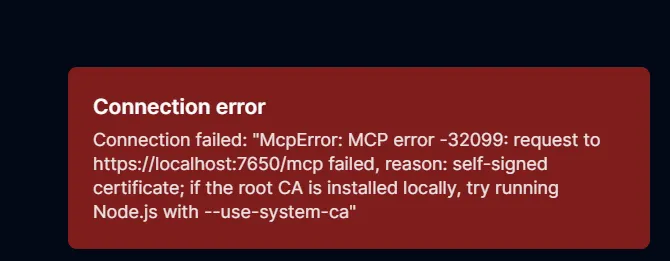
For my local setup, I needed to start by telling Node.js that it should ignore the ACE self-signed cert. If you don’t, you might encounter an error like this, so be warned.
set NODE_TLS_REJECT_UNAUTHORIZED=0
npx @modelcontextprotocol/inspector
Or if you prefer PowerShell:
$env:NODE_TLS_REJECT_UNAUTHORIZED = "0"
npx @modelcontextprotocol/inspector
You can always disable ssl on the RestAdminListener level completely, but then nothing is SSL secured, and I would have
a lot less to write about. So let’s keep that one on.
After installation, the Inspector spawns a local UI at http://localhost:6274/.
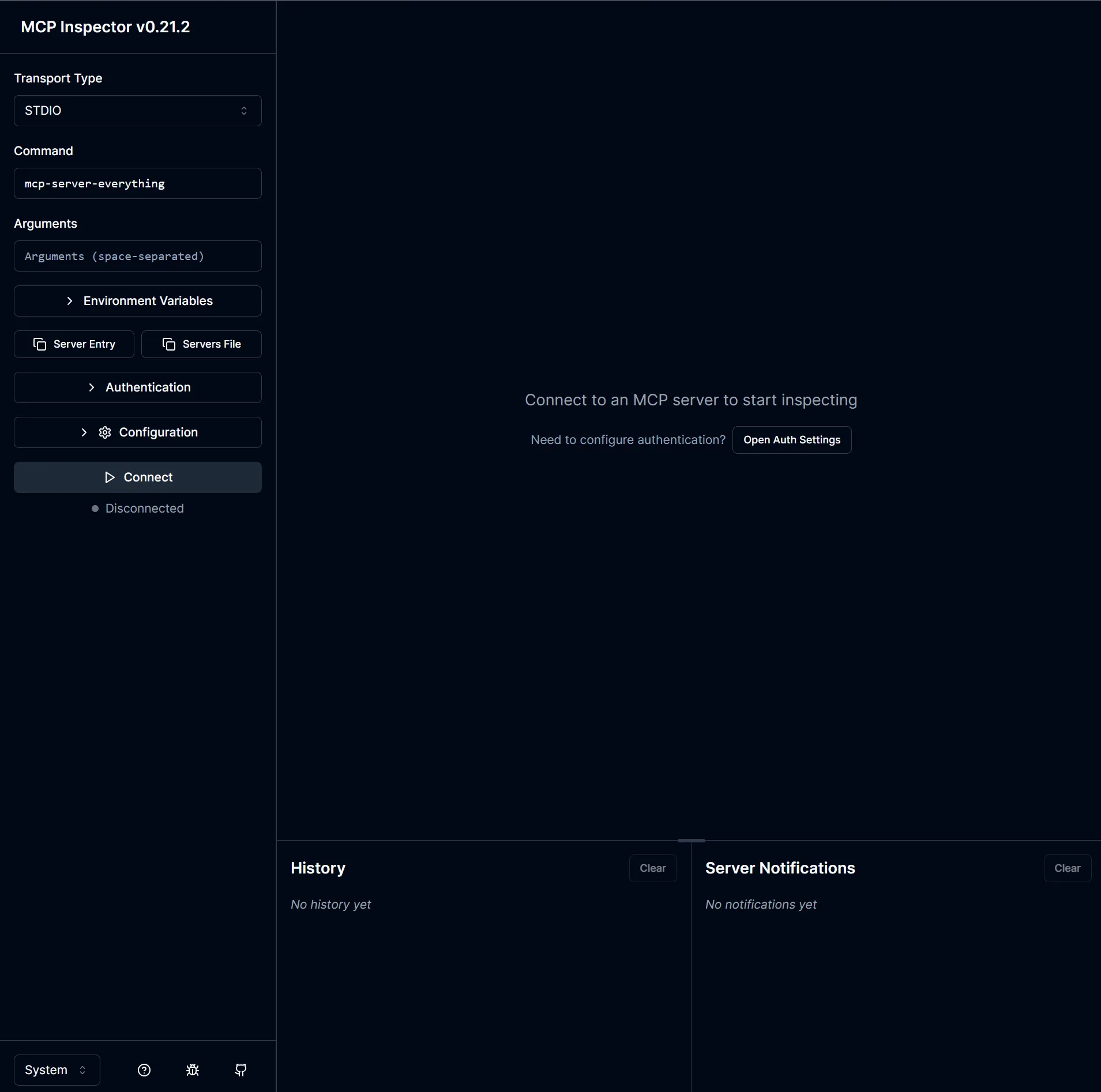
To talk to the ACE MCP, we need some configuration:
| Field | Value |
|---|---|
| Transport Type | Streamable HTTP (not SSE , ACE doesn’t accept SSE) |
| URL | https://localhost:7650/mcp |
| Connection Type | Leave this set to “Via Proxy” |
| Authentication | leave collapsed |
| Configuration | defaults are fine |
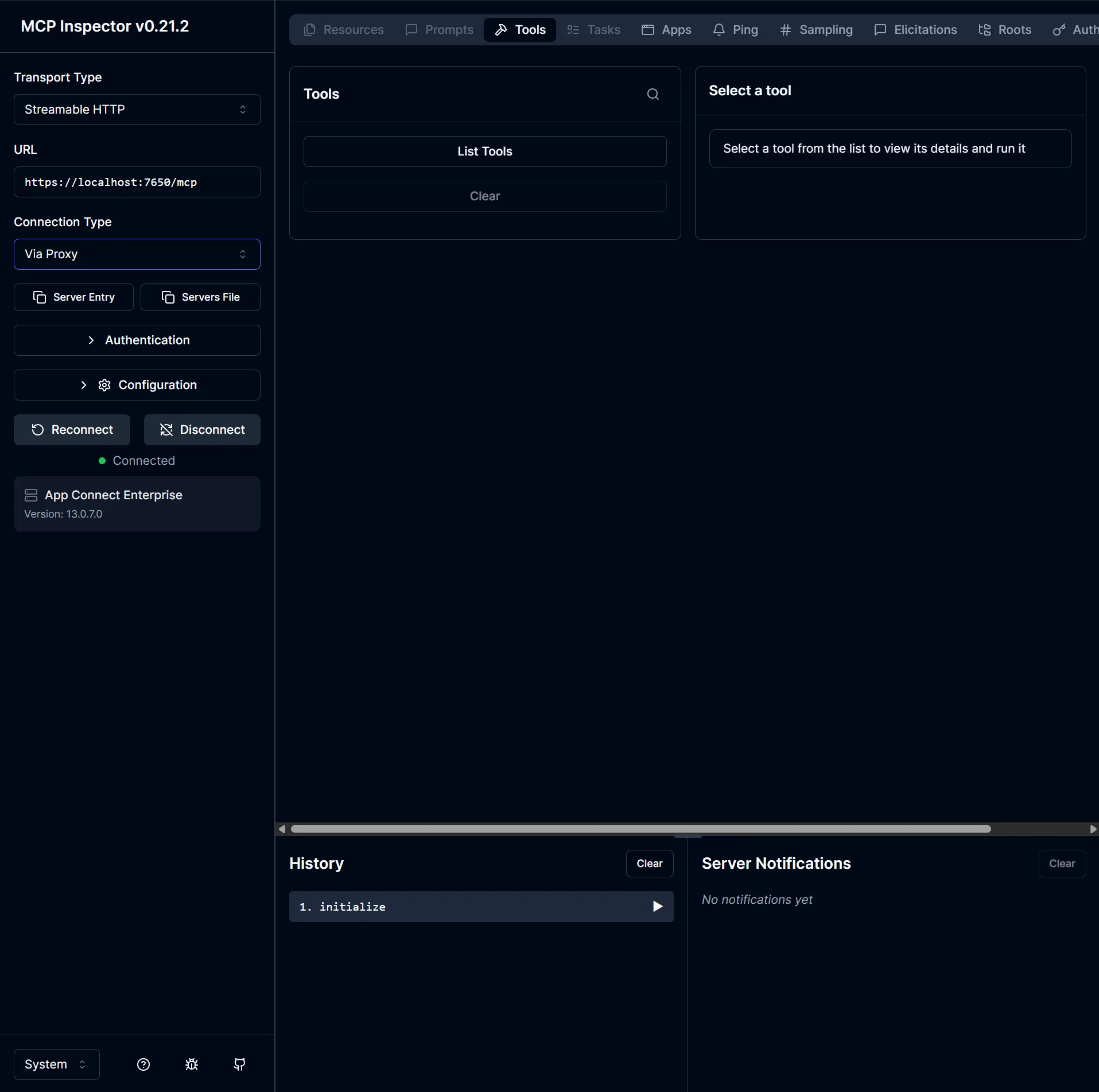
Click Connect and the status changes to Connected with App Connect Enterprise / Version: 13.0.7.0 shown in the
left pane. The Tools tab is what we are interested in.
Curl
MCP Streamable HTTP is simply JSON-RPC over a stateful HTTP session. If you know what you need, then you can very easily use curl, instead of an additional tool. Three things you need to know:
- The first call must be
initialize. The server’s response includes anMcp-Session-Idheader. - All subsequent calls must echo that
Mcp-Session-Idheader back. - The server sometimes responds as
text/event-stream(SSE) and sometimes as plain JSON depending on the call , sendAccept: application/json, text/event-streamfor each call.
Below you can see the full handshake in PowerShell, capturing the session ID for later calls:
# Using curl.exe here. Invoke-WebRequest -SkipCertificateCheck is PowerShell 7+ only,
# see the "PowerShell 5.1 doesn't have -SkipCertificateCheck" section under Problems.
$base = 'https://localhost:7650/mcp'
$initBody = '{"jsonrpc":"2.0","id":1,"method":"initialize","params":{"protocolVersion":"2025-06-18","capabilities":{},"clientInfo":{"name":"blog-tester","version":"1.0"}}}'

# initialize , capture headers with -D - and pull the Mcp-Session-Id out
# Body goes in via stdin (--data-binary '@-') to dodge PowerShell 5.1's broken
# native-arg-passing for strings containing " characters.
$out = $initBody | curl.exe -sk -D - -X POST $base `
  -H 'Content-Type: application/json' `
  -H 'Accept: application/json, text/event-stream' `
  --data-binary '@-'
$session = ($out | Select-String -CaseSensitive:$false '^mcp-session-id:').Line -replace '(?i)^mcp-session-id:\s*',''
$session

# initialized notification (no response body expected)
'{"jsonrpc":"2.0","method":"notifications/initialized"}' | curl.exe -sk -X POST $base `
  -H 'Content-Type: application/json' `
  -H 'Accept: application/json, text/event-stream' `
  -H "Mcp-Session-Id: $session" `
  --data-binary '@-' | Out-Null
Bash equivalent, same pattern with curl -D - to capture headers:
BASE='https://localhost:7650/mcp'
SESSION=$(curl -sk -D - -X POST "$BASE" \
  -H "Content-Type: application/json" \
  -H "Accept: application/json, text/event-stream" \
  -d '{"jsonrpc":"2.0","id":1,"method":"initialize","params":{"protocolVersion":"2025-06-18","capabilities":{},"clientInfo":{"name":"blog-tester","version":"1.0"}}}' \
  | tr -d '\r' | awk 'BEGIN{IGNORECASE=1} /^mcp-session-id:/{print $2}')

curl -sk -X POST "$BASE" \
  -H "Content-Type: application/json" \
  -H "Accept: application/json, text/event-stream" \
  -H "Mcp-Session-Id: $SESSION" \
  -d '{"jsonrpc":"2.0","method":"notifications/initialized"}' > /dev/null
From here on, every tools/list or tools/call is just another POST request with Mcp-Session-Id: $SESSION. Each tool
section below shows only the tools/call body and the response, you reuse the same initial handshake once per shell.
One MCP client at a time. ACE 13.0.7.0 has a bug where the integration server only accepts one MCP client per server lifetime, the first one wins. Every subsequent client trying to
initializegets back a generic500 Internal Server Error. This took me a while to figure out, so hopefully I can save you the trouble. Restart the integration server to switch from Inspector to curl (or vice versa). See the Only one MCP client at a time section for the technical mumbo jumbo.
Step 3: Tools registered by MCP.Admin
Now we get to the point: what MCP.Admin actually gives us. On 13.0.7.0, MCP.Admin exposes six tools. Each one has
a short name (the protocol identifier you send in tools/call) and a title (the English sentence Inspector shows you):
| # | name | title |
|---|---|---|
| 1 | info | Provide basic information about the connected server |
| 2 | list_integrations | List the Applications, Rest APIS, Services and Libraries of an integration runtime, together with their state |
| 3 | list_application_needs | List any deployment or runtime resources this application needs |
| 4 | list_policies | List the policies of an integration runtime |
| 5 | list_credentials | List the credentials of an integration runtime |
| 6 | describe_message_flow | Return a structure with information detailing a message flow |
What you need to know:
- The protocol-level
nameyou POST intools/callis the short identifier (info,list_integrations, …). The English sentence is just thetitleInspector displays. Inspector handles this for you when you click a tool. Incurlyou have to send the short form. - None of the six tools is annotated with the standard MCP hints (
readOnlyHint,destructiveHint,idempotentHint,openWorldHint). Inspector renders them all as ✗ , but they’re all clearly read-only, so this is just missing annotation metadata.
@IBM, there is still some room for improvement here 😉
I’ll be going over each tool, showing:
- The Inspector screenshot of running the tool.
- The
tools/call. - The actual JSON response from a real integration server with these resources deployed.
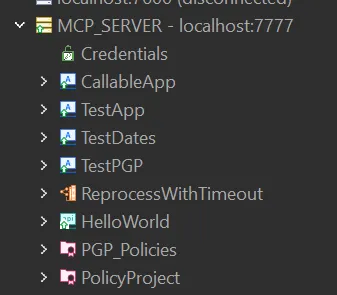
I don’t want to get your hopes up (and maybe I should have mentioned this sooner), but … The MCP only gives you static information about your Integration Server, there is no interactivity, no CRUD and no logging or debugging tools.
3.1 Provide basic information about the connected server
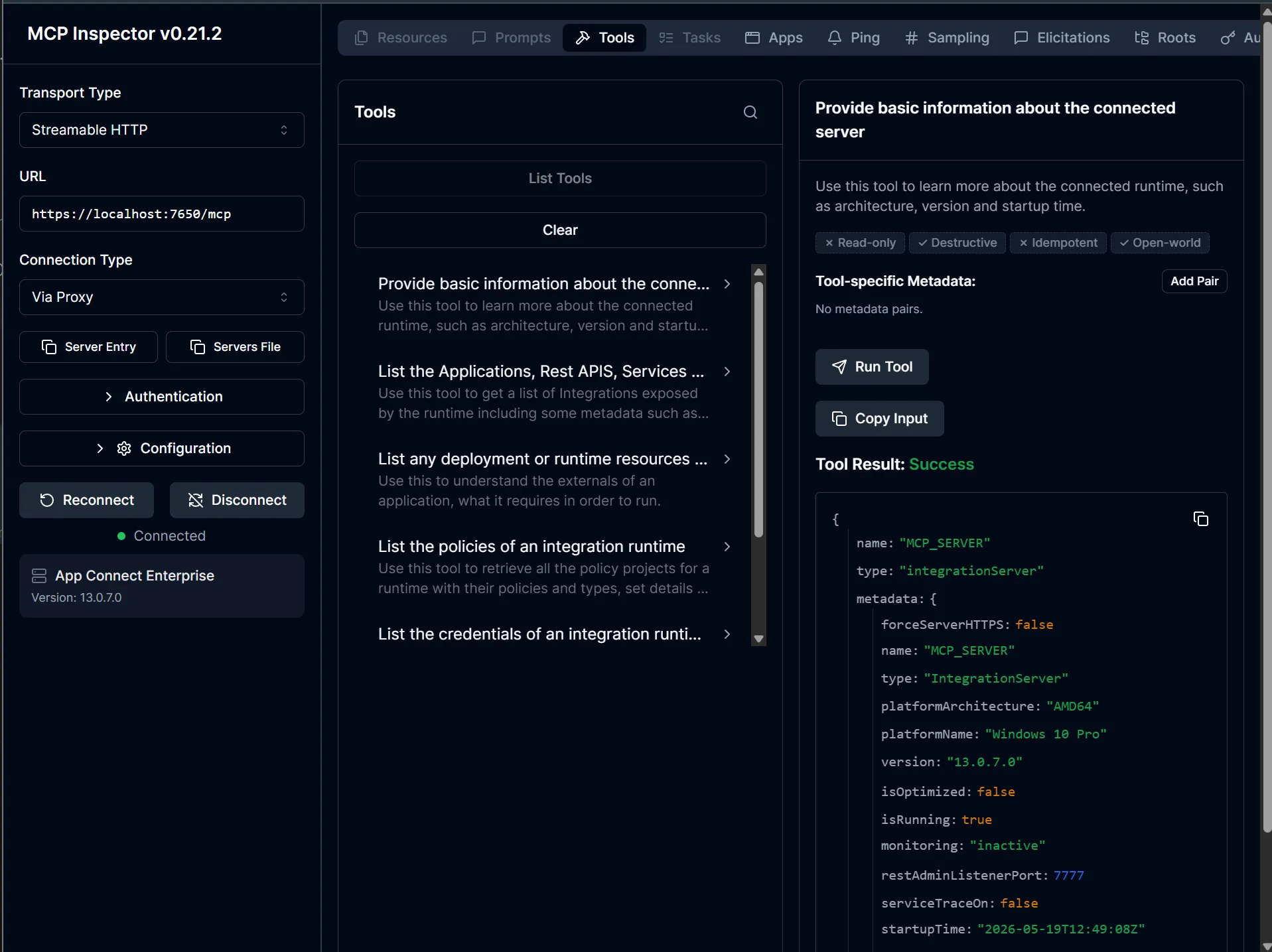
This MCP tool gives you information about the connected runtime, such as architecture, version and startup time.
Inspector
Select the Provide basic information about the connected server tool in the middle panel → Run Tool
(no arguments required).
Curl
Run the following curl, after performing the handshake, with $SESSION set (see Step 2).
'{"jsonrpc":"2.0","id":2,"method":"tools/call","params":{"name":"info","arguments":{}}}' | curl.exe -sk -X POST $base `
  -H 'Content-Type: application/json' `
  -H 'Accept: application/json, text/event-stream' `
  -H "Mcp-Session-Id: $session" `
  --data-binary '@-'
Response (the wire format wraps the payload in result.content[0].text as an escaped string; unwrapped for readability):
{
  "name": "MCP_SERVER",
  "type": "integrationServer",
  "metadata": {
    "forceServerHTTPS": false,
    "name": "MCP_SERVER",
    "type": "IntegrationServer",
    "platformArchitecture": "AMD64",
    "platformName": "Windows 10 Pro",
    "version": "13.0.7.0",
    "isOptimized": false,
    "isRunning": true,
    "monitoring": "inactive",
    "restAdminListenerPort": 7777,
    "serviceTraceOn": false,
    "startupTime": "2026-05-19T14:22:09Z",
    "userTraceOn": false
  }
}
3.2 List the Applications, Rest APIs, Services and Libraries of an integration runtime, together with their state
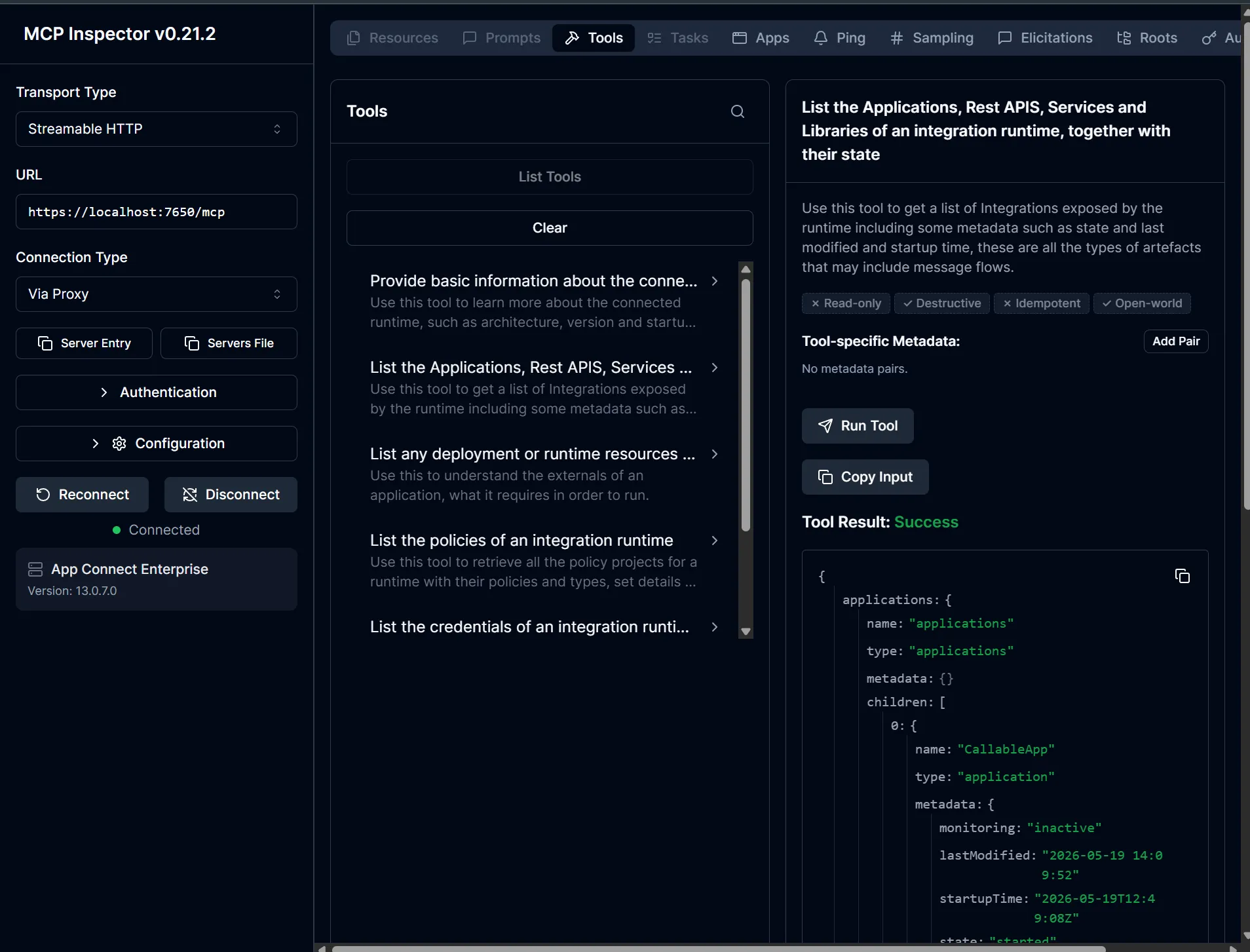
This MCP tool gives you information about your deployed resources, including some metadata such as state, last-modified time, and startup time.
Inspector
Select the List the Applications, Rest APIS, Services and Libraries of an integration runtime, together with their state
tool in the middle panel → Run Tool (no arguments required).
Curl
'{"jsonrpc":"2.0","id":3,"method":"tools/call","params":{"name":"list_integrations","arguments":{}}}' | curl.exe -sk -X POST $base `
  -H 'Content-Type: application/json' `
  -H 'Accept: application/json, text/event-stream' `
  -H "Mcp-Session-Id: $session" `
  --data-binary '@-'
Response (unwrapped from result.content[0].text):
Full response (click to expand)
{
  "applications": {
    "name": "applications",
    "type": "applications",
    "metadata": {},
    "children": [
      {
        "name": "CallableApp",
        "type": "application",
        "metadata": {
          "monitoring": "inactive",
          "lastModified": "2026-05-19 14:09:52",
          "startupTime": "2026-05-19T14:22:09Z",
          "state": "started"
        },
        "children": [
          { "name": "subflows",    "type": "subFlows",    "metadata": {} },
          { "name": "resources",   "type": "resources",   "metadata": {},
            "children": [
              { "name": "com\\mbl\\test\\CallableFlow_HelloWorld.esql", "type": "resource", "metadata": {} }
            ]
          },
          { "name": "libraries",   "type": "libraries",   "metadata": {} },
          { "name": "messageflows","type": "messageFlows","metadata": {},
            "children": [
              { "name": "com.mbl.test.CallableFlow", "type": "messageFlow", "metadata": {} }
            ]
          },
          { "name": "statistics",  "type": "statistics",  "metadata": {},
            "children": [
              { "name": "snapshot", "type": "snapshot", "metadata": {} },
              { "name": "archive",  "type": "archive",  "metadata": {} }
            ]
          }
        ]
      },
      {
        "name": "TestApp",
        "type": "application",
        "metadata": {
          "monitoring": "inactive",
          "lastModified": "2026-05-19 14:17:04",
          "startupTime": "2026-05-19T14:22:09Z",
          "state": "started"
        },
        "children": [
          { "name": "subflows", "type": "subFlows", "metadata": {} },
          { "name": "resources","type": "resources","metadata": {},
            "children": [
              { "name": "JEN_inputMessage.xml", "type": "resource", "metadata": {} },
              { "name": "TestFlow_Compute.esql","type": "resource", "metadata": {} },
              { "name": "TEST_XML.json",        "type": "resource", "metadata": {} }
            ]
          },
          { "name": "libraries", "type": "libraries", "metadata": {} },
          { "name": "messageflows","type":"messageFlows","metadata": {},
            "children": [{ "name": "TestFlow", "type": "messageFlow", "metadata": {} }]
          },
          { "name": "statistics","type":"statistics","metadata": {},
            "children": [
              { "name": "snapshot","type":"snapshot","metadata": {} },
              { "name": "archive", "type":"archive", "metadata": {} }
            ]
          }
        ]
      },
      {
        "name": "TestDates",
        "type": "application",
        "metadata": {
          "monitoring": "inactive",
          "lastModified": "2026-05-19 14:10:08",
          "startupTime": "2026-05-19T14:22:09Z",
          "state": "started"
        },
        "children": [
          { "name": "subflows","type":"subFlows","metadata": {} },
          { "name": "resources","type":"resources","metadata": {},
            "children": [
              { "name": "TestDates_Compute.esql",   "type": "resource", "metadata": {} },
              { "name": "TestDates_inputMessage.xml","type":"resource", "metadata": {} }
            ]
          },
          { "name": "libraries","type":"libraries","metadata": {} },
          { "name": "messageflows","type":"messageFlows","metadata": {},
            "children": [{ "name": "TestDates", "type": "messageFlow", "metadata": {} }]
          },
          { "name": "statistics","type":"statistics","metadata": {},
            "children": [
              { "name": "snapshot","type":"snapshot","metadata": {} },
              { "name": "archive", "type":"archive", "metadata": {} }
            ]
          }
        ]
      },
      {
        "name": "TestPGP",
        "type": "application",
        "metadata": {
          "monitoring": "inactive",
          "lastModified": "2026-04-03 15:32:28",
          "startupTime": "2026-05-19T14:22:09Z",
          "state": "started"
        },
        "children": [
          { "name": "subflows","type":"subFlows","metadata": {} },
          { "name": "resources","type":"resources","metadata": {},
            "children": [
              { "name": "pgp\\decrypt_inputMessage.xml","type":"resource","metadata": {} },
              { "name": "pgp\\encrypt_inputMessage.xml","type":"resource","metadata": {} },
              { "name": "pgp\\testpgp_Compute.esql",    "type":"resource","metadata": {} }
            ]
          },
          { "name": "libraries","type":"libraries","metadata": {} },
          { "name": "messageflows","type":"messageFlows","metadata": {},
            "children": [
              { "name": "pgp.decrypt","type":"messageFlow","metadata": {} },
              { "name": "pgp.encrypt","type":"messageFlow","metadata": {} }
            ]
          },
          { "name": "statistics","type":"statistics","metadata": {},
            "children": [
              { "name": "snapshot","type":"snapshot","metadata": {} },
              { "name": "archive", "type":"archive", "metadata": {} }
            ]
          }
        ]
      }
    ]
  },
  "restapis": {
    "name": "rest-apis",
    "type": "restApis",
    "metadata": {},
    "children": [
      {
        "name": "HelloWorld",
        "type": "restApi",
        "metadata": {
          "monitoring": "inactive",
          "lastModified": "2026-05-19 14:09:50",
          "startupTime": "2026-05-19T14:22:09Z",
          "state": "started"
        },
        "children": [
          { "name": "subflows","type":"subFlows","metadata": {},
            "children": [
              { "name": "getHello",                          "type":"subFlow","metadata": {} },
              { "name": "HelloWorldInputCatchHandler",       "type":"subFlow","metadata": {} },
              { "name": "HelloWorldInputFailureHandler",     "type":"subFlow","metadata": {} },
              { "name": "HelloWorldInputTimeoutHandler",     "type":"subFlow","metadata": {} },
              { "name": "postHello",                         "type":"subFlow","metadata": {} }
            ]
          },
          { "name": "resources","type":"resources","metadata": {},
            "children": [
              { "name": "getHello_Compute.esql",                       "type":"resource","metadata": {} },
              { "name": "hello.yaml",                                  "type":"resource","metadata": {} },
              { "name": "HelloWorldInputCatchHandler_Compute.esql",    "type":"resource","metadata": {} },
              { "name": "HelloWorldInputFailureHandler_Compute.esql",  "type":"resource","metadata": {} },
              { "name": "HelloWorldInputTimeoutHandler_Compute.esql",  "type":"resource","metadata": {} },
              { "name": "postHello_Compute.esql",                      "type":"resource","metadata": {} }
            ]
          },
          { "name": "libraries","type":"libraries","metadata": {} },
          { "name": "messageflows","type":"messageFlows","metadata": {},
            "children": [{ "name": "gen.HelloWorld","type":"messageFlow","metadata": {} }]
          },
          { "name": "document",  "type":"document",  "metadata": {} },
          { "name": "interface", "type":"interface", "metadata": { "lastModified":"2026-05-19 14:09:50" },
            "children": [
              { "name": "getHello", "type":"operation","metadata": {} },
              { "name": "postHello","type":"operation","metadata": {} }
            ]
          },
          { "name": "statistics","type":"statistics","metadata": {},
            "children": [
              { "name": "snapshot","type":"snapshot","metadata": {} },
              { "name": "archive", "type":"archive", "metadata": {} }
            ]
          }
        ]
      }
    ]
  },
  "services": {
    "name": "services",
    "type": "services",
    "metadata": {}
  },
  "libraries": {
    "name": "shared-libraries",
    "type": "sharedLibraries",
    "metadata": {},
    "children": [
      {
        "name": "ReprocessWithTimeout",
        "type": "sharedLibrary",
        "metadata": { "lastModified":"2026-05-19 14:10:00" },
        "children": [
          { "name": "subflows","type":"subFlows","metadata": {},
            "children": [
              { "name": "com.id.reprocess.timeout.ReprocessWithTimeoutSeperateTransaction","type":"subFlow","metadata": {} },
              { "name": "com.id.reprocess.timeout.ReprocessWithTimeoutSingleTransaction",  "type":"subFlow","metadata": {} }
            ]
          },
          { "name": "resources","type":"resources","metadata": {},
            "children": [
              { "name": "com\\id\\reprocess\\timeout\\TimeoutSeperateTransaction_CheckRetry.esql","type":"resource","metadata": {} },
              { "name": "com\\id\\reprocess\\timeout\\WaitForTimeout_Retry.esql",                "type":"resource","metadata": {} }
            ]
          }
        ]
      }
    ]
  }
}
That’s a lot of structure for one tool, but it’s all there: four applications (CallableApp, TestApp, TestDates, TestPGP), one REST API (HelloWorld with its two operations getHello / postHello), no services, and one shared library (ReprocessWithTimeout). Each artefact gets a state, last-modified timestamp, and startup time, plus its internal children (subflows, resources, message flows, statistics).
3.3 List any deployment or runtime resources this application needs
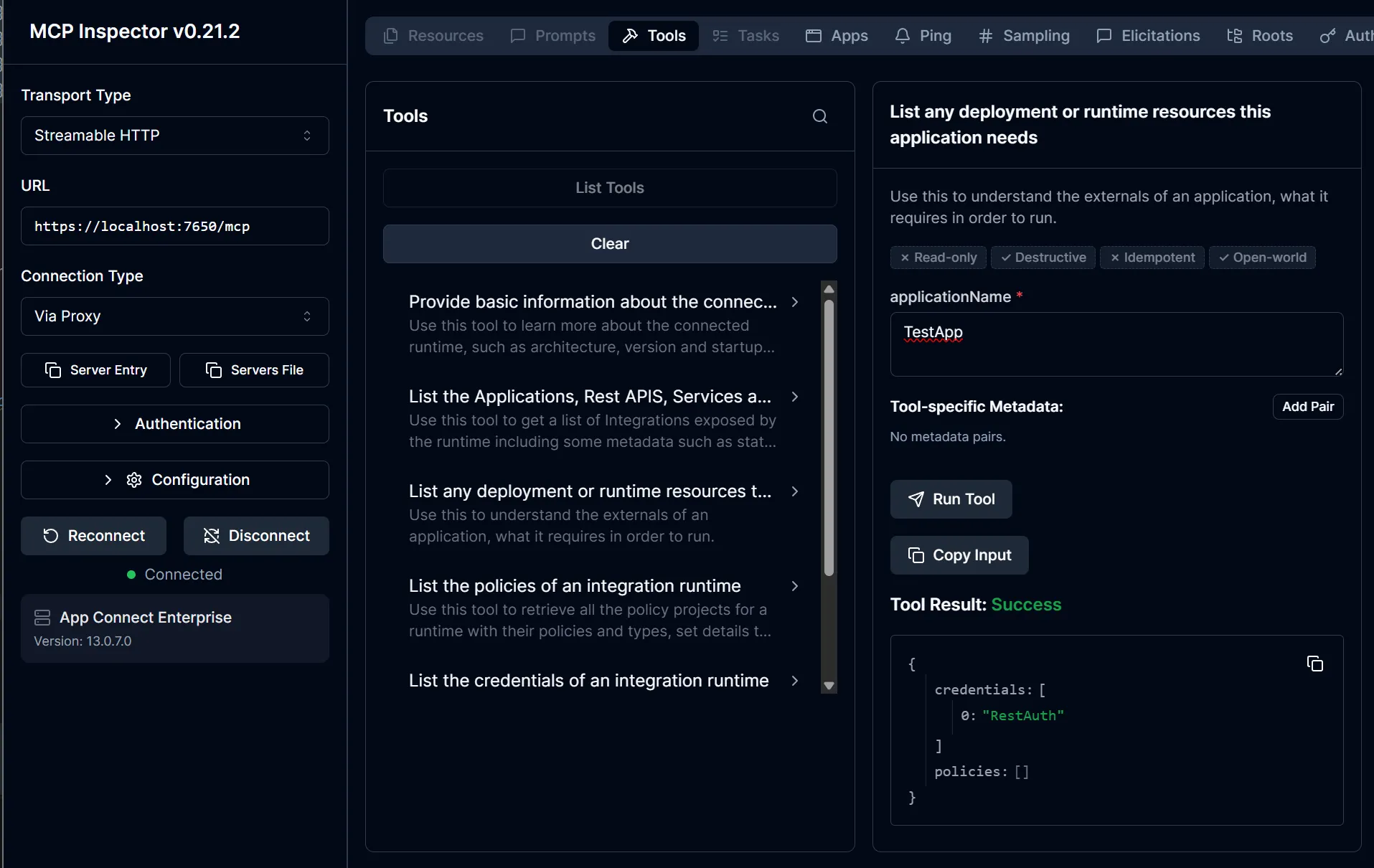
This MCP tool gives you information about your dependencies. It shows the externals of an application, what it requires
in order to run. Takes an application name as a parameter , e.g. TestApp or TestPGP for our runtime.
Inspector
Select the List any deployment or runtime resources this application needs tool in the middle panel, specify an application
you want to look at → Run Tool
Curl
'{"jsonrpc":"2.0","id":4,"method":"tools/call","params":{"name":"list_application_needs","arguments":{"applicationName":"TestApp"}}}' | curl.exe -sk -X POST $base `
  -H 'Content-Type: application/json' `
  -H 'Accept: application/json, text/event-stream' `
  -H "Mcp-Session-Id: $session" `
  --data-binary '@-'
The argument key is applicationName (not application, caught me out the first time).
Response (unwrapped from result.content[0].text):
{
  "credentials": ["RestAuth"],
  "policies": []
}
So TestApp needs the RestAuth credential to run and doesn’t reference any policy. Useful as a pre-deploy sanity check.
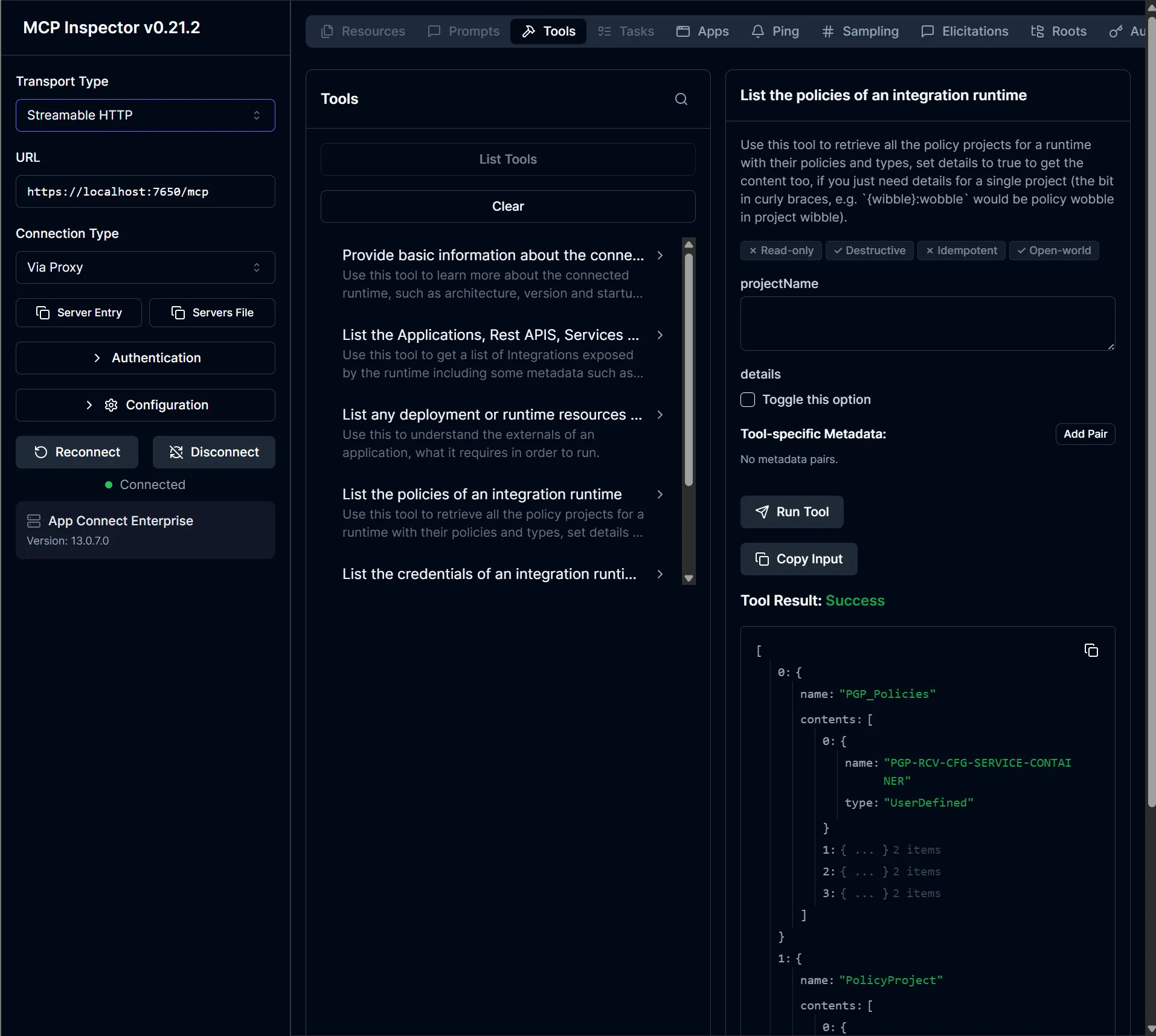
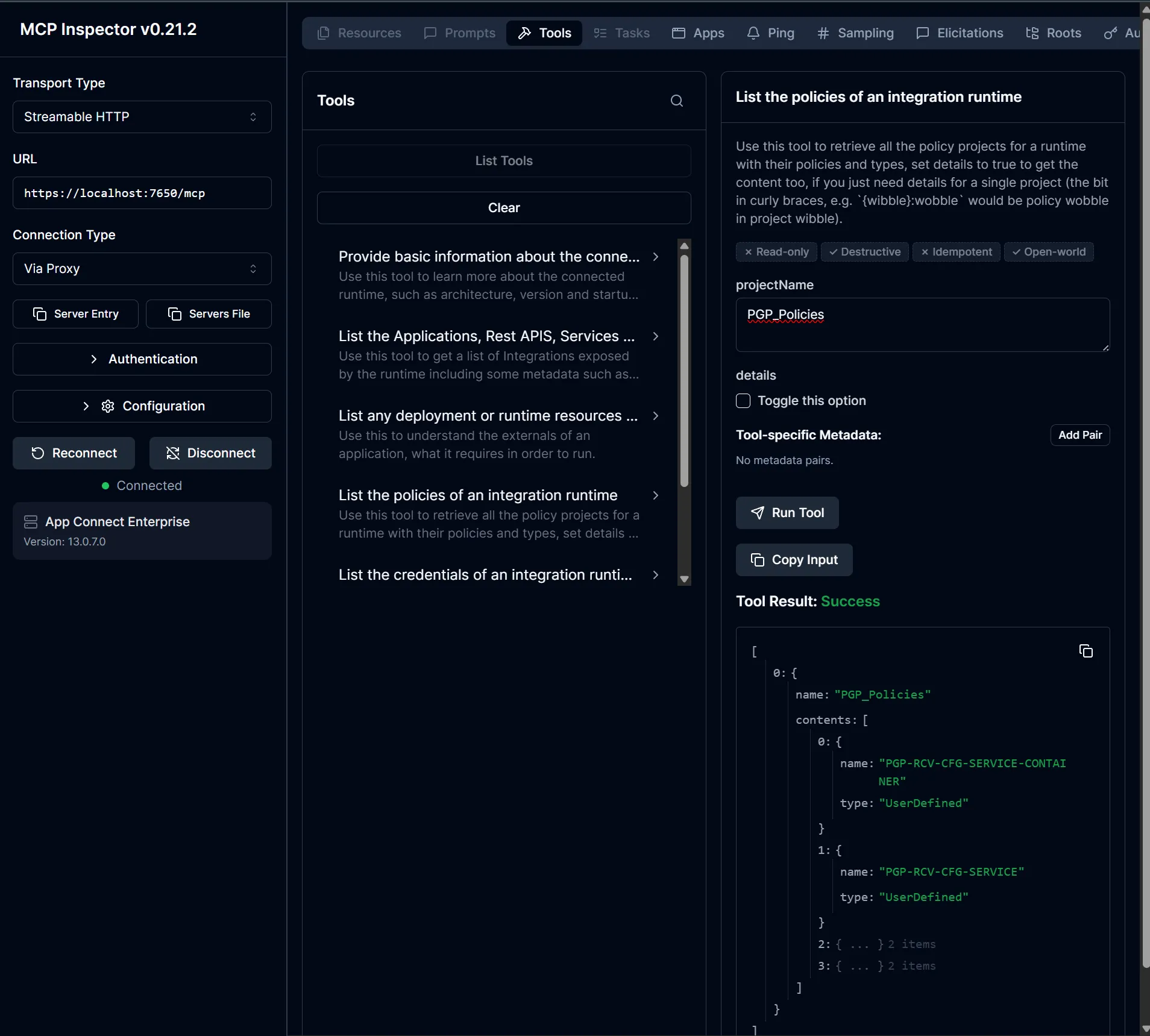
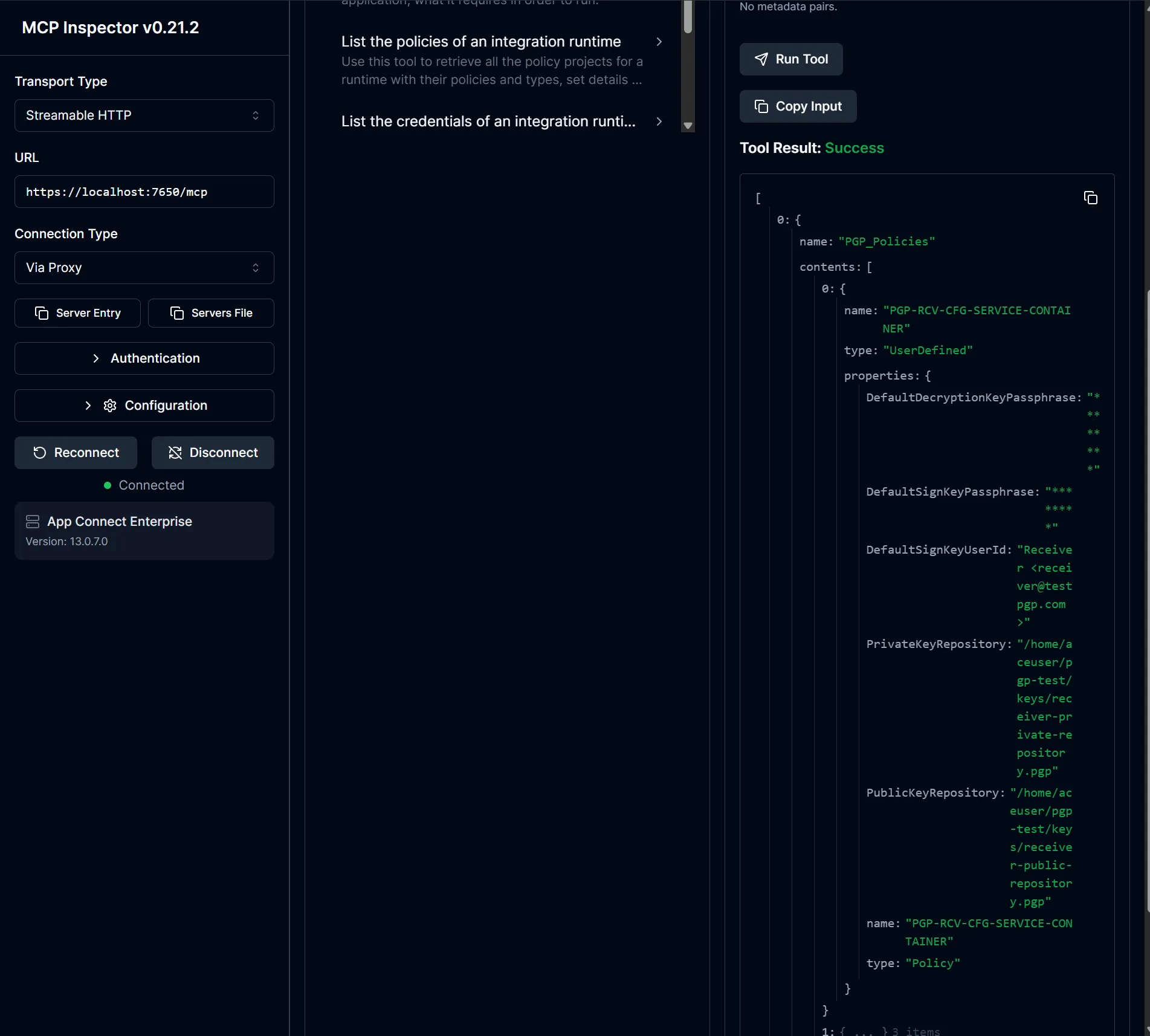
3.4 List the policies of an integration runtime
This MCP tool gives you information about the available policies. Either for a specific Policy Project or for the full Integration Server. With optional policy details.
Inspector
Select the List the policies of an integration runtime tool in the middle panel, run it as is, or select a specific
project you want to look at → Run Tool
For the full runtime
For a specific Policy Project
With full details
Curl
Summary across all policy projects (no arguments):
'{"jsonrpc":"2.0","id":5,"method":"tools/call","params":{"name":"list_policies","arguments":{}}}' | curl.exe -sk -X POST $base `
  -H 'Content-Type: application/json' `
  -H 'Accept: application/json, text/event-stream' `
  -H "Mcp-Session-Id: $session" `
  --data-binary '@-'
Response:
[
  {
    "name": "PGP_Policies",
    "contents": [
      { "name": "PGP-RCV-CFG-SERVICE-CONTAINER", "type": "UserDefined" },
      { "name": "PGP-RCV-CFG-SERVICE",           "type": "UserDefined" },
      { "name": "PGP-SDR-CFG-SERVICE-CONTAINER", "type": "UserDefined" },
      { "name": "PGP-SDR-CFG-SERVICE",           "type": "UserDefined" }
    ]
  },
  {
    "name": "PolicyProject",
    "contents": [
      { "name": "DefaultMQ",              "type": "MQEndpoint" },
      { "name": "DefaultMQInsecure",      "type": "MQEndpoint" },
      { "name": "DefaultMQInsecureLocal", "type": "MQEndpoint" },
      { "name": "sftp_policy",            "type": "FtpServer"  },
      { "name": "sftp_policy2",           "type": "FtpServer"  }
    ]
  }
]
Single project, with full details (projectName + details=true):
'{"jsonrpc":"2.0","id":6,"method":"tools/call","params":{"name":"list_policies","arguments":{"projectName":"PolicyProject","details":true}}}' | curl.exe -sk -X POST $base `
  -H 'Content-Type: application/json' `
  -H 'Accept: application/json, text/event-stream' `
  -H "Mcp-Session-Id: $session" `
  --data-binary '@-'
The schema names the selector projectName (and details as a separate boolean), not the {wibble}:wobble selector string the tool description hints at. The description is misleading here.
Response:
Full response (click to expand)
[
  {
    "name": "PolicyProject",
    "contents": [
      {
        "name": "DefaultMQ",
        "type": "MQEndpoint",
        "properties": {
          "CCDTUrl": "",
          "MQApplName": "",
          "SSLCertificateLabel": "",
          "SSLCipherSpec": "",
          "SSLPeerName": "",
          "agentId": "",
          "channelName": "DEV.APP.SVRCONN",
          "connection": "CLIENT",
          "destinationQueueManagerName": "QM1",
          "listenerPortNumber": 1414,
          "name": "DefaultMQ",
          "queueManagerHostname": "localhost",
          "reconnectOption": "default",
          "securityIdentity": "qm1",
          "type": "Policy",
          "useSSL": false
        }
      },
      {
        "name": "DefaultMQInsecure",
        "type": "MQEndpoint",
        "properties": {
          "CCDTUrl": "",
          "MQApplName": "",
          "SSLCertificateLabel": "",
          "SSLCipherSpec": "",
          "SSLPeerName": "",
          "agentId": "",
          "channelName": "INSECURE.APP.SVRCONN",
          "connection": "CLIENT",
          "destinationQueueManagerName": "qmgrpoc",
          "listenerPortNumber": 1414,
          "name": "DefaultMQInsecure",
          "queueManagerHostname": "qmgr-poc-ibm-mq",
          "reconnectOption": "default",
          "securityIdentity": "",
          "type": "Policy",
          "useSSL": false
        }
      },
      {
        "name": "DefaultMQInsecureLocal",
        "type": "MQEndpoint",
        "properties": {
          "CCDTUrl": "",
          "MQApplName": "",
          "SSLCertificateLabel": "",
          "SSLCipherSpec": "",
          "SSLPeerName": "",
          "agentId": "",
          "channelName": "INSECURE.APP.SVRCONN",
          "connection": "CLIENT",
          "destinationQueueManagerName": "QM1",
          "listenerPortNumber": 1414,
          "name": "DefaultMQInsecureLocal",
          "queueManagerHostname": "localhost",
          "reconnectOption": "default",
          "securityIdentity": "",
          "type": "Policy",
          "useSSL": false
        }
      },
      {
        "name": "sftp_policy",
        "type": "FtpServer",
        "properties": {
          "allowedCiphers": "",
          "fileFtpAccountInfo": "",
          "fileFtpCompression": 0,
          "fileFtpConnectionType": "PASSIVE",
          "fileFtpDirectory": "",
          "fileFtpScanDelay": null,
          "fileFtpServer": "itcsubmit.wustl.edu:22",
          "fileFtpTransferMode": "",
          "fileFtpUser": "testId",
          "knownHostsFile": "",
          "mac": "",
          "name": "sftp_policy",
          "preserveRemoteFileDate": false,
          "proxyPolicyName": "",
          "remoteTransferType": "",
          "sslProtocol": "TLSv1.2",
          "strictHostKeyChecking": false,
          "timeoutInterval": 0,
          "type": "Policy"
        }
      },
      {
        "name": "sftp_policy2",
        "type": "FtpServer",
        "properties": {
          "allowedCiphers": "",
          "fileFtpAccountInfo": "",
          "fileFtpCompression": 0,
          "fileFtpConnectionType": "PASSIVE",
          "fileFtpDirectory": "",
          "fileFtpScanDelay": null,
          "fileFtpServer": "itcsubmit.wustl.edu:22",
          "fileFtpTransferMode": "",
          "fileFtpUser": "testId2",
          "knownHostsFile": "",
          "mac": "",
          "name": "sftp_policy2",
          "preserveRemoteFileDate": false,
          "proxyPolicyName": "",
          "remoteTransferType": "",
          "sslProtocol": "TLSv1.2",
          "strictHostKeyChecking": false,
          "timeoutInterval": 0,
          "type": "Policy"
        }
      }
    ]
  }
]
Now you can see exactly which queue manager DefaultMQ is pointing at, what channel DefaultMQInsecure uses, which SFTP server the sftp_policy2 is configured for, etc. , without having to crack open the policy XML on disk.
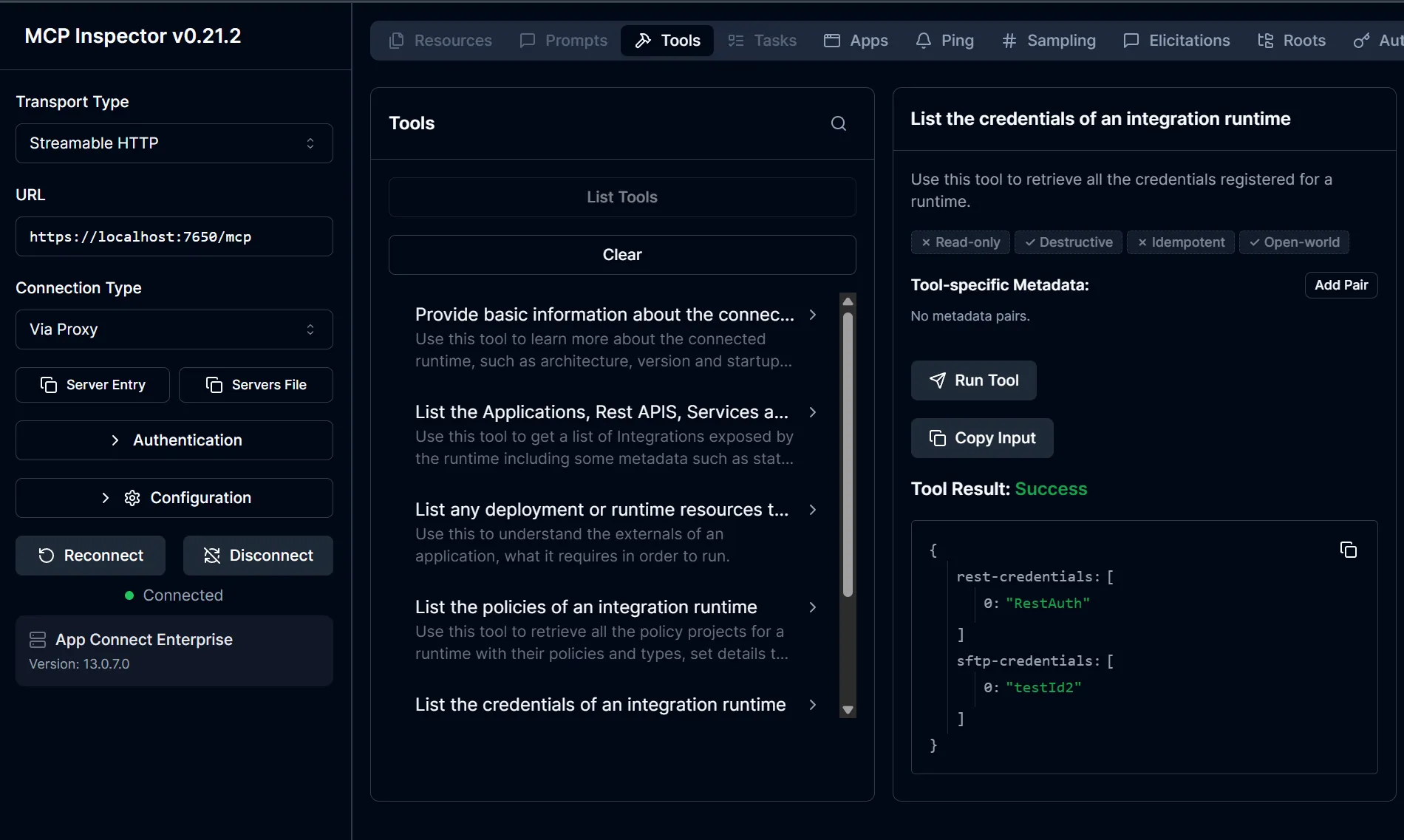
3.5 List the credentials of an integration runtime
This MCP tool gives you an overview of all registered credentials for your runtime. Like the other tools it’s read-only, and it doesn’t give you any actual usernames or passwords (which makes sense).
Inspector
Select the List the credentials of an integration runtime tool in the middle panel → Run Tool
Curl
'{"jsonrpc":"2.0","id":7,"method":"tools/call","params":{"name":"list_credentials","arguments":{}}}' | curl.exe -sk -X POST $base `
  -H 'Content-Type: application/json' `
  -H 'Accept: application/json, text/event-stream' `
  -H "Mcp-Session-Id: $session" `
  --data-binary '@-'
Response (unwrapped from result.content[0].text):
{
  "rest-credentials": ["RestAuth"],
  "sftp-credentials": ["testId2"]
}
Just the aliases, grouped by credential type. No usernames, no passwords. So the LLM can ask “which credentials exist?” but can’t read what’s in them, which is the right design for a read-only tool.
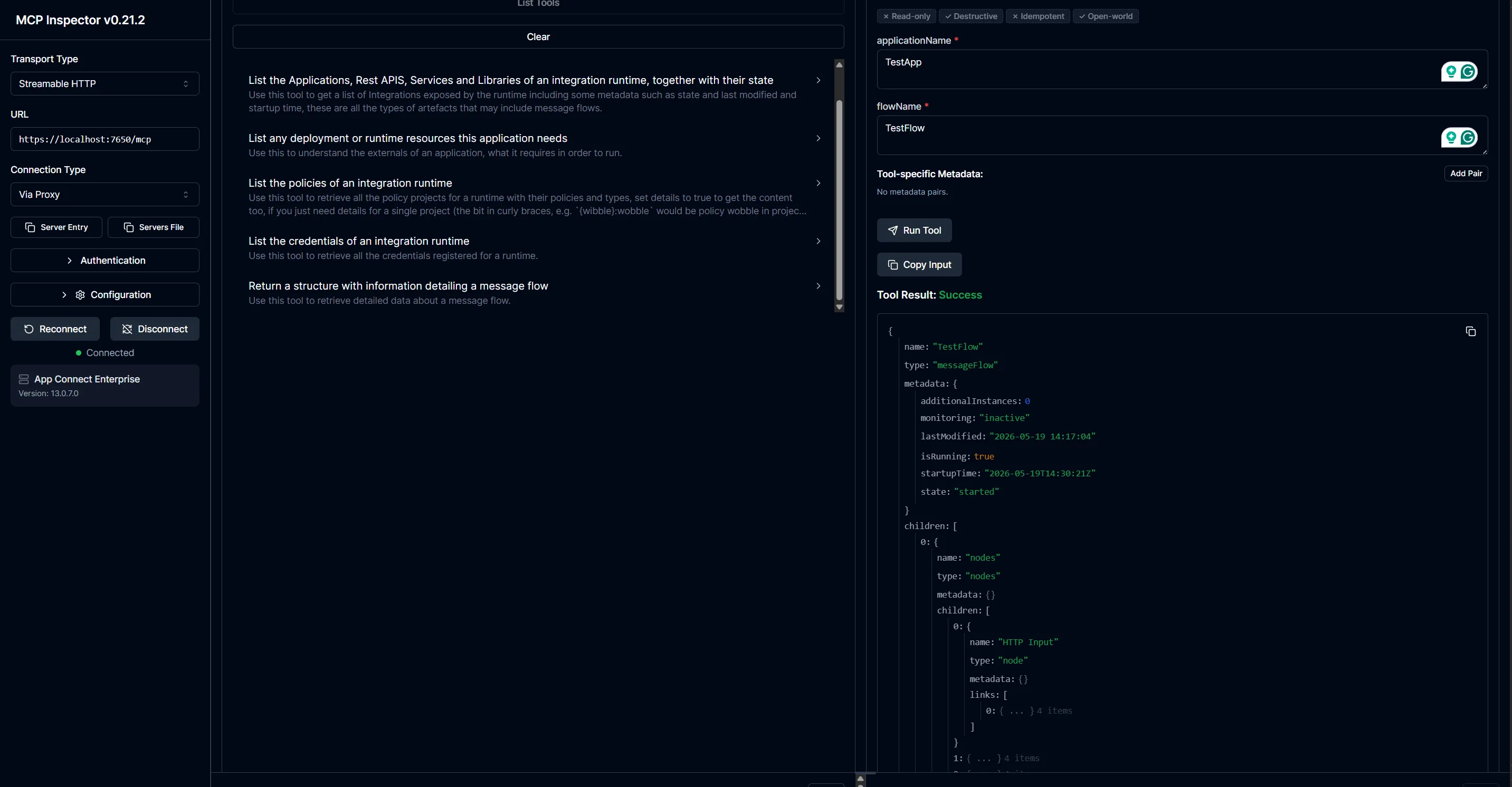
3.6 Return a structure with information detailing a message flow
This MCP tool gives you a text-based description of a deployed message flow: its nodes, the links between them,
runtime state, and any per-node metadata (security identities, that kind of thing). Requires both applicationName and
flowName.
Inspector
Select the Return a structure with information detailing a message flow tool in the middle panel, fill in the
application and the flow → Run Tool.
Curl
'{"jsonrpc":"2.0","id":8,"method":"tools/call","params":{"name":"describe_message_flow","arguments":{"applicationName":"TestApp","flowName":"TestFlow"}}}' | curl.exe -sk -X POST $base `
  -H 'Content-Type: application/json' `
  -H 'Accept: application/json, text/event-stream' `
  -H "Mcp-Session-Id: $session" `
  --data-binary '@-'
Response (unwrapped from result.content[0].text):
{
  "name": "TestFlow",
  "type": "messageFlow",
  "metadata": {
    "additionalInstances": 0,
    "monitoring": "inactive",
    "lastModified": "2026-05-19 14:17:04",
    "isRunning": true,
    "startupTime": "2026-05-19T14:22:09Z",
    "state": "started"
  },
  "children": [
    {
      "name": "nodes",
      "type": "nodes",
      "metadata": {},
      "children": [
        {
          "name": "HTTP Input",
          "type": "node",
          "metadata": {},
          "links": [
            { "sourceNode": "HTTP Input", "targetNode": "Compute", "sourceTerminal": "out", "targetTerminal": "in" }
          ]
        },
        {
          "name": "Compute",
          "type": "node",
          "metadata": {},
          "links": [
            { "sourceNode": "HTTP Input", "targetNode": "Compute",      "sourceTerminal": "out",  "targetTerminal": "in" },
            { "sourceNode": "Compute",    "targetNode": "File Read",    "sourceTerminal": "out",  "targetTerminal": "in" },
            { "sourceNode": "Compute",    "targetNode": "postNew-path", "sourceTerminal": "out4", "targetTerminal": "in" }
          ]
        },
        {
          "name": "File Read",
          "type": "node",
          "metadata": {},
          "links": [
            { "sourceNode": "Compute", "targetNode": "File Read", "sourceTerminal": "out", "targetTerminal": "in" }
          ]
        },
        {
          "name": "postNew-path",
          "type": "node",
          "metadata": { "securityIdentity": "RestAuth" },
          "links": [
            { "sourceNode": "Compute", "targetNode": "postNew-path", "sourceTerminal": "out4", "targetTerminal": "in" }
          ]
        }
      ]
    },
    {
      "name": "statistics",
      "type": "statistics",
      "metadata": {},
      "children": [
        { "name": "snapshot", "type": "snapshot", "metadata": {} },
        { "name": "archive",  "type": "archive",  "metadata": {} }
      ]
    }
  ]
}
This might be the most interesting tool of the bunch. You get the whole flow graph: an HTTP Input feeds a Compute node,
which fans out to a File Read and a postNew-path HTTP-request node (with its securityIdentity set to RestAuth,
explaining why list_application_needs reported a credential dependency back in 3.3). Each link captures the
source/target node and terminal so a tool downstream could, theoretically, rebuild the topology graphically.
Handing it over to Bob
Inspector and curl are great for poking around, but the whole point of standing up an MCP server is to point an actual agent at it. Time to hand the keys to one, and who better than Bob? Two actions to take here:
- Handling the self-signed certificate
- Configuring the MCP
Make the cert workaround permanent
Inspector and curl both got NODE_TLS_REJECT_UNAUTHORIZED=0 from the shell I launched them in. Bob is a long-running
Windows app that you start once and forget about, so the shell trick doesn’t carry over. Two options here: either I add
the signing certificate as a trusted root, or I set the user environment variables to allow for the self-signed certificate.
I went with the latter option. In case you also want to go down this route, here’s what you need to do:
Win + R→sysdm.cpl→Advanced→Environment Variables…- Under
User variables, clickNew, set the name toNODE_TLS_REJECT_UNAUTHORIZEDand the value to0. - Relaunch Bob, not the single project, but everything (just in case you have multiple projects open).
Same dev-only caveat as before. If this laptop is ever going to do production work, swap this for a properly trusted CA in Windows’ Trusted Root store.
Register the MCP server in Bob
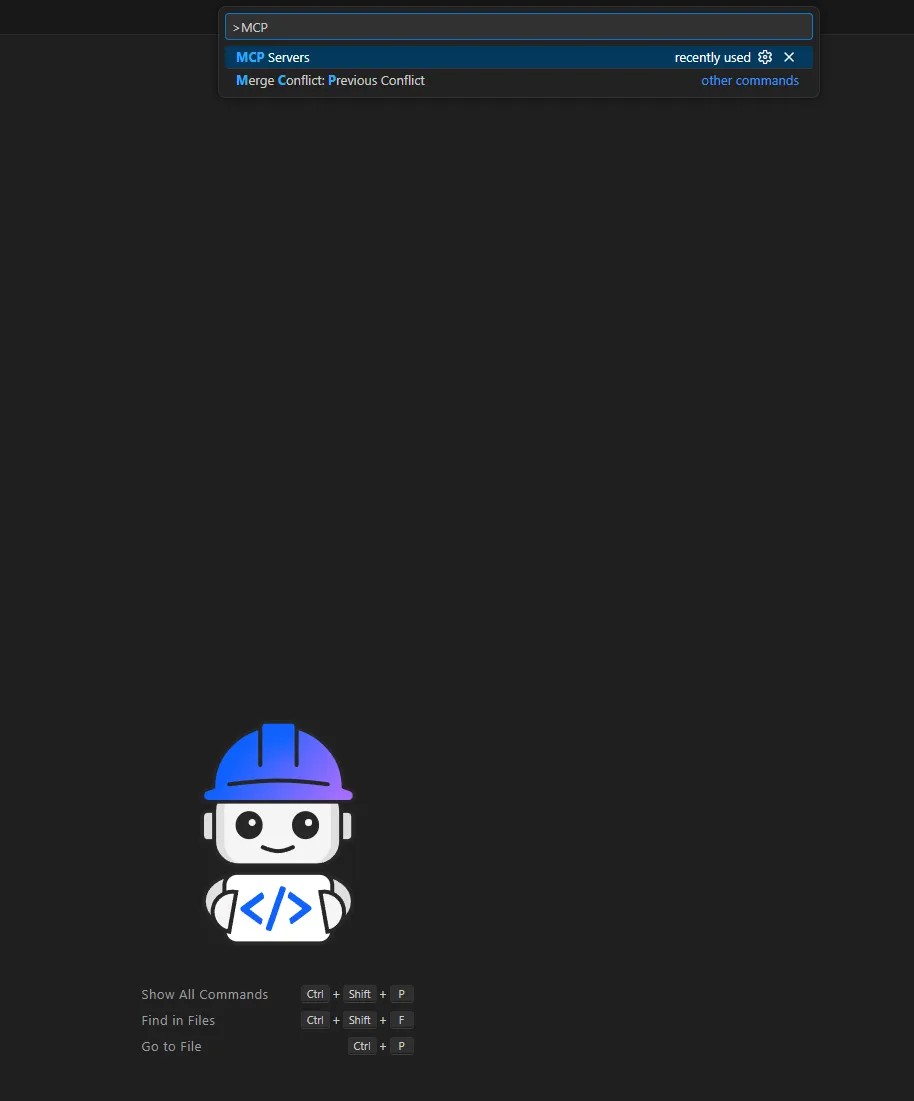
Bob has its own MCP settings menu under Settings → MCP which writes to C:\Users\<you>\.bob\settings\mcp_settings.json.
Open the command palette and type in MCP:
I went for the Global MCPs approach:
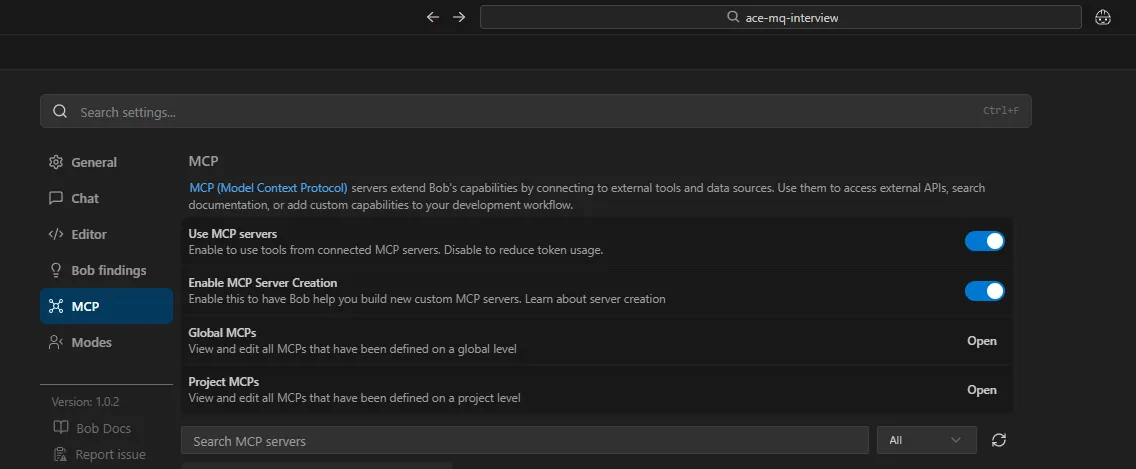
And I entered the following, which ends up in the previously-mentioned mcp_settings.json:
{
  "mcpServers": {
    "ace-admin": {
      "url": "https://localhost:7650/mcp/sse",
      "type": "sse"
    }
  }
}
Two things of note here:
- Have a good look at the
url. We use/mcpfor curl and Inspector, but Bob requires the/mcp/sseendpoint. If you just specify the MCP endpoint, you will get a bunch of SSE 404 errors. Bob expects the SSE handshake regardless of how you configured it. - The
typefield is set tosseto match.
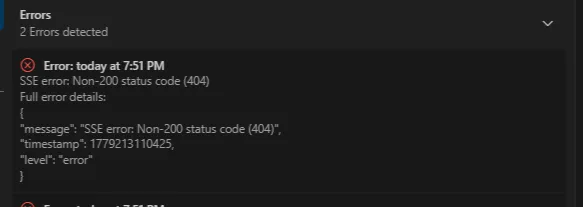
With these settings in place, open the ace-admin server and enable it. You should see the available tools show up here.
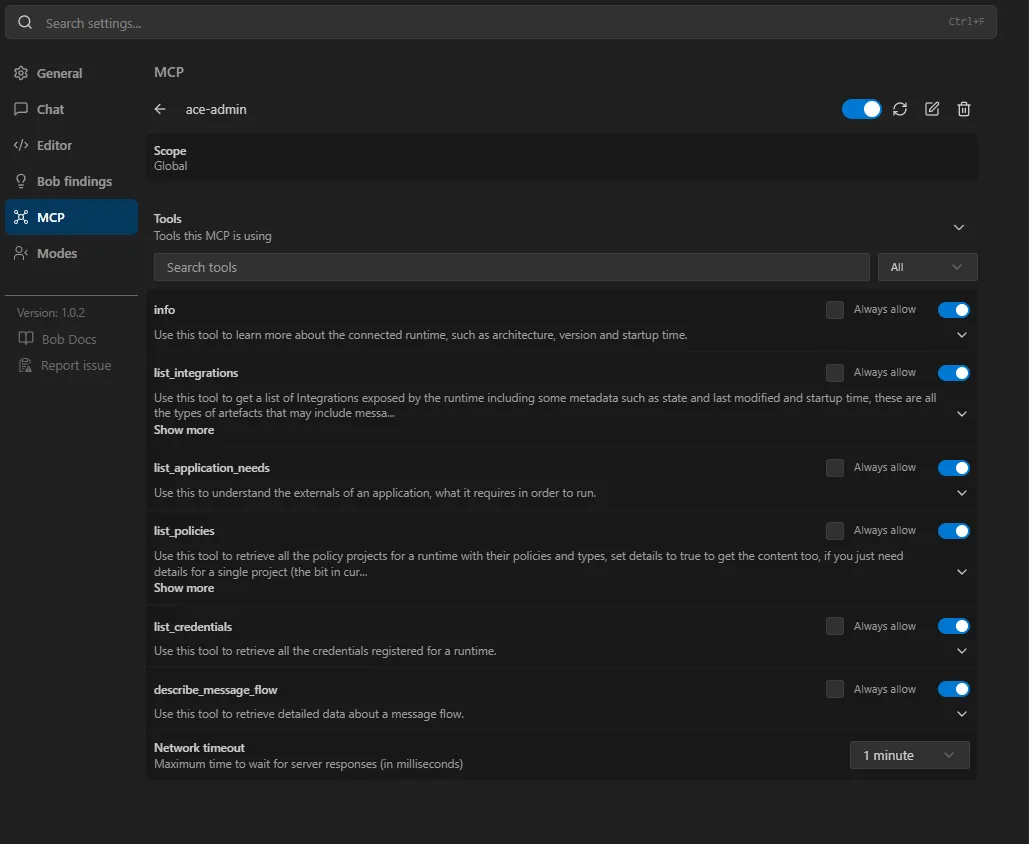
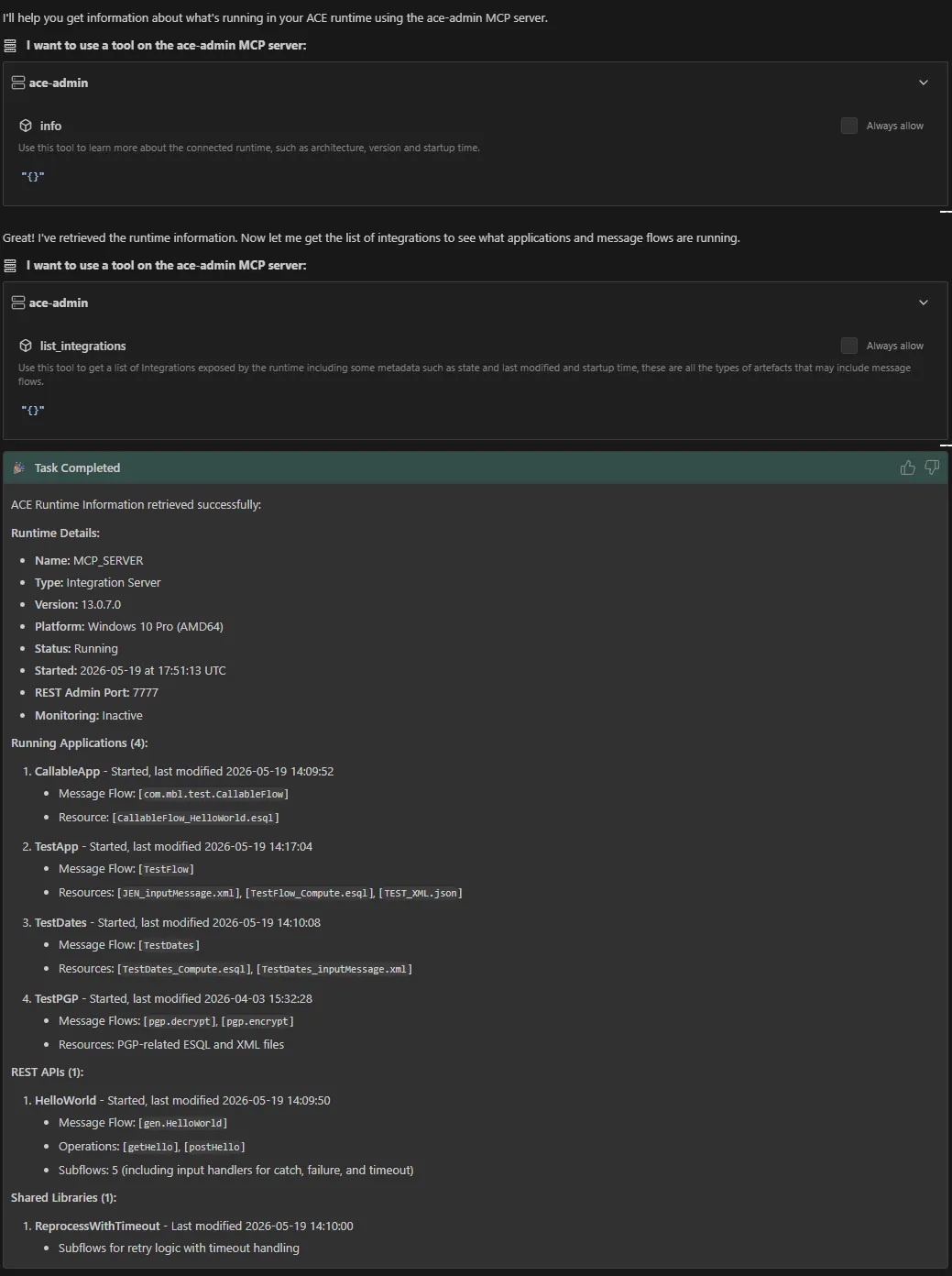
From here you ask Bob things like “what applications are deployed?” or “what credentials does TestApp depend on?” and
it picks the right MCP tool, calls it, and turns the JSON into a sentence. I just asked it a simple question:
“Hey Bob, can you get me some info on what is running in my ace runtime? use the ace-admin mcp”
And this was the reply:
You can also tell Bob to allow these actions by default, if you trust them.
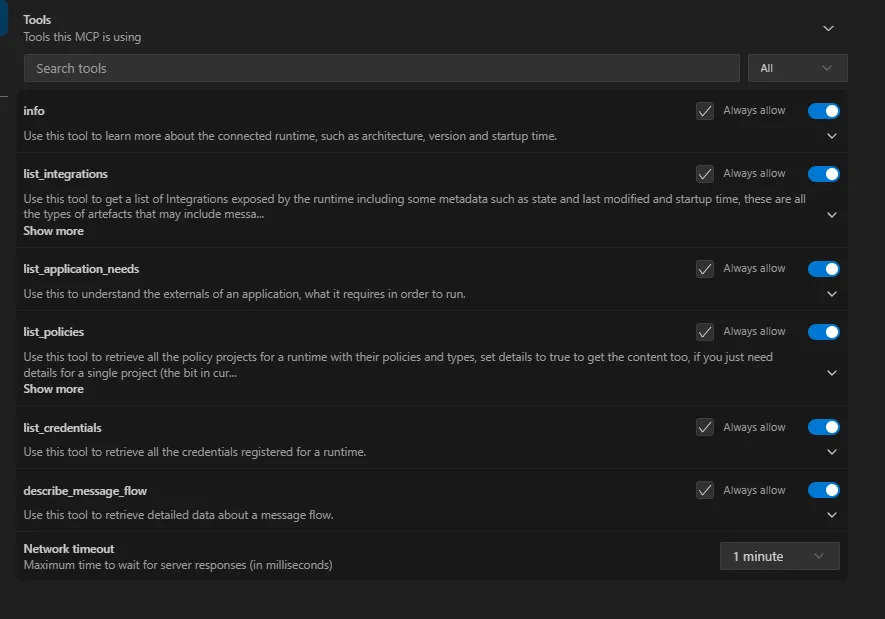
I’ve played around with it and sometimes the MCP started failing when I changed these settings. I’m not entirely sure if
it was the Bob config or the ACE MCP server that was being difficult, but I ended up changing the mcp_settings.json by
hand and restarting the MCP in Bob to get everything running again.
Problems I encountered
I got this to work in the end, but I did hit a couple of bumps on the way. Sharing them so you can either find a quick solution to the problem or avoid it altogether.
Self-signed certificate vs Node.js
The standalone integration server uses its own self-signed cert (the same one it uses for RestAdminListener).
Inspector’s underlying Node fetch refuses it by default and tells you to “try running Node.js with
--use-system-ca”, which only helps if the cert is in the OS trust store. You can always import the CA, if you want, but
the quickest workaround is to set NODE_TLS_REJECT_UNAUTHORIZED=0 in the shell before launching Inspector. Strictly
dev-only, obviously. The same approach works for any Node-based MCP client.
PowerShell 5.1 doesn’t have -SkipCertificateCheck
If you want to use PowerShell to call the MCP, you also need a way of ignoring the self-signed
certificate validation. PowerShell 7 added the -SkipCertificateCheck flag to the Invoke-WebRequest function, but if
you are still rocking the Windows-bundled PowerShell 5.1, you need to either
- Upgrade your PowerShell installation.
- Use
curl.exefrom PowerShell, it has-kand side-steps the issue (usecurl.exeand not justcurl, without the.exeit defaults toInvoke-WebRequest). - Override the global validation callback once per shell:
[System.Net.ServicePointManager]::ServerCertificateValidationCallback = {$true}
[System.Net.ServicePointManager]::SecurityProtocol = [System.Net.SecurityProtocolType]::Tls12
I just switched to curl.exe, seemed easiest.
PowerShell quote-passing to native .exes
In PowerShell, \" inside single-quoted strings is literal, it’s not an escape sequence the shell strips. So
the friendly-looking:
curl.exe -d '{\"foo\":\"bar\"}' https://example.comsends a body with literal backslashes and breaks JSON parsing on the server. The server returns a generic error that gives you no clue this is what happened. Three workarounds:
--%stop-parsing operator:curl.exe --% -d "{\"foo\":\"bar\"}" https://example.comswitches tocmd-style quoting from there on.- Body in a file and
curl.exe -d '@body.json'. - Body via stdin:
$body | curl.exe --data-binary '@-' ….
I keep doing this in PowerShell, so I thought I’d write this reminder, at least partly, for myself.
500 Internal Server Error with zero detail
If you POST anything to /mcp that ACE doesn’t like (wrong shape, wrong session state, anything that throws
inside its Node handler), the response body is the unhelpful:
{"jsonrpc":"2.0","error":{"code":-32000,"message":"Internal Server Error"},"id":null}The real stack trace goes through log4js to ACE’s service trace, which is disabled by default on a Standalone Integration Server. So you don’t get a log file with the actual error either. Either turn on the server trace or try again.
Only one MCP client at a time
This was an annoying one, and it’s worth its own subsection because the behavior was tricky to understand. The integration server only accepts one MCP client per server lifetime, the first one wins. Not really helpful when you are testing both a UI and a CLI at the same time.
The technical explanation:
ACE’s mcpRouter.js creates one McpServer instance per router (at startup) and calls connect() on it for every
new client session:
const u = new McpServer({...});               // one instance, lives forever
// per initialize request:
const i = new StreamableHTTPServerTransport({...});
await u.connect(i);                           // ← throws on the 2nd+ call
The MCP SDK’s Protocol.connect() refuses to re-attach:
// @modelcontextprotocol/sdk/dist/esm/shared/protocol.js
async connect(transport) {
    if (this._transport) {
        throw new Error('Already connected to a transport. Call close() before connecting to a new transport, or use a separate Protocol instance per connection.');
    }
    this._transport = transport;
    ...
}
The exception gets caught by an Express error middleware and becomes the generic 500 above. First client wins. Every subsequent client trying to initialize a fresh session gets 500 until the integration server is restarted.
The practical impact: pick one MCP client per ACE process. If you connect via Inspector first and then try
curl, expect 500s. If you connect via curl first and then try Inspector, expect Inspector to fail.
Inspector’s “Disconnect” doesn’t really disconnect
Adjacent to the previous point. Clicking Disconnect in Inspector’s UI is misleading. The underlying transport
on ACE’s side only fires onclose when:
- A
DELETE /mcprequest with the originalMcp-Session-Idheader is sent, or - The SSE stream closes from the network side
Closing the Inspector browser tab, killing its npx process, or hitting the Disconnect button doesn’t reliably do
either. Even with no TCP connection on port 7650, ACE’s McpServer._transport is still set, and new initialize
requests keep 500’ing. The fool-proof way to clear ACE-side state is to restart the integration server.
Auth: do this before anyone else can reach the port
MCP.Admin on 13.0.7.0 has only enabled and port. No mcpCredentialName, no sslMode knob. It inherits TLS
from the RestAdminListener configuration and is unauthenticated to anyone who can reach the port.
That’s fine for a laptop demo. For anything else:
- Bind
RestAdminListenerto a non-public address (127.0.0.1if you’re tunnelling, an internal subnet if you’re not). - Put a reverse proxy in front that does Basic Auth, mTLS, or OAuth, and only forward to
7650after successful auth. The MCP Inspector and Claude Desktop both happily speak Basic Auth over the Streamable HTTP transport. - If you have IBM’s MCP Gateway / ContextForge available, route through that , it adds OAuth, rate limiting, and scope enforcement in front of any MCP server.
- Watch the IBM 13.0.8 release notes for
MCP.Admin.mcpCredentialName(or similar) , givenMCP.Runtimealready has that knob, it would be surprising not to land onAdminat some point.
What this didn’t cover
- MCP.Runtime , exposing your deployed REST APIs as MCP tools.
- Containerised deployments. Setting up MCP inside an
IntegrationRuntimeCR on Kubernetes is a different exercise , wiringserver.conf.yamloverrides through aserverconfConfiguration, exposing port7650/7750through an ingress, and dealing with the operator’s dashboard↔runtime certificate wiring.
Where this leaves us
We now have an Admin MCP right there in ACE. Sure, it’s not CRUD, it’s not exposing logging or auditing information. But, it’s a start, and it got my hopes up for things to come.
References
- App Connect operand versions and features (where 13.0.7 features are listed)
- Configuring MCP properties (
server.conf.yamlreference , Runtime properties) - Exposing a REST API as an MCP tool
- Model Context Protocol specification
- MCP Inspector
- Ben Thompson , ACE 13.0.7.0 release blog
- Kim Meynendonckx , inspiration for this post
Written by Matthias Blomme and inspired by Kim Meynendonckx
#IBMChampion